GabibouUI ModuleScript installed in ReplicatedStorage.
1. Pick a starting design
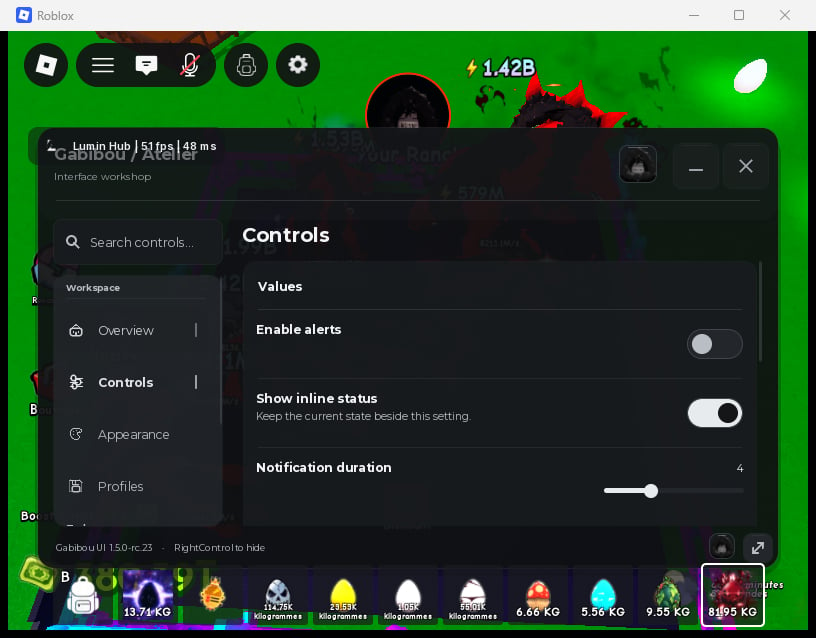
This small setup creates a window with two labeled pages and ordinary UI controls. It performs no game actions.
UI:Design accepts overrides such as Accent, Density, Radius, Tabs, Navigation, and Transparency.
2. Fit a phone or narrow panel
Responsive layout is on by default. The default breakpoint is 620 px, so a 375 px wide viewport uses the mobile layout. Keep tab titles visible:Rail keeps a distinct icon treatment while retaining the label, and the navigation scrolls when its tabs do not fit. Do not rely on icons alone to name a page.
Keep touch targets at least 44 px high. The library’s default is 44 px; set it explicitly with Responsive when documenting or tuning a mobile window. Let controls stack under their labels on narrow rows, and leave the default 12 px screen margin unless your host requires a different safe area.
Width and Height are the preferred desktop size; responsive layout fits the window to smaller viewports. Tabs accepts Left, Right, Top, or Bottom. On mobile, MobileTabPosition accepts Top or Bottom. Check both a 375 × 667 viewport and the same viewport with the on-screen keyboard open. Verify labels, control descriptions, and the focused text field remain visible.
3. Adjust the details
Use a preset and override the actual option you want.Transparency and Layout.PanelTransparency range from 0 (opaque) to 1 (fully transparent); a value such as 0.08 keeps the panel readable while showing a little background through it. This affects the panel surface, not each control row.
Navigation.Variant accepts Classic, Soft, Pill, or Rail. Navigation.IconVariant accepts Outline, Soft, or Duotone. A tab can set its own IconVariant while keeping its title:
SetPosition takes a UDim2 position and optional Vector2 anchor. The example centers the window. For responsive panels, avoid hard-coded part offsets unless you have checked them at phone width and with the keyboard open.
SetMotion accepts a duration in seconds and Roblox easing enums. window:SetReducedMotion(true) disables managed movement animations and is a good default when motion is not essential. Call SetMotion on the window to preview a transition; call SetReducedMotion when you want the reduced-motion setting to take precedence.
The ZIP’s gabibou_ui source folder includes the complete design_showcase.luau example. It demonstrates a preset, responsive settings, a ready-to-use Appearance tab, labeled navigation, icon variants, and reduced-motion controls without connecting to game actions.
4. Reuse a named design
Register a design once when several windows share the same visual choices:window:SetTheme, window:SetStyle, window:SetLayout, and window:SetNavigation to refine an existing window. Use window:Destroy() when it should be removed. See Appearance and responsive layout for valid ranges and Icons and branding for the icon catalogue.
Add a ready-to-use appearance tab
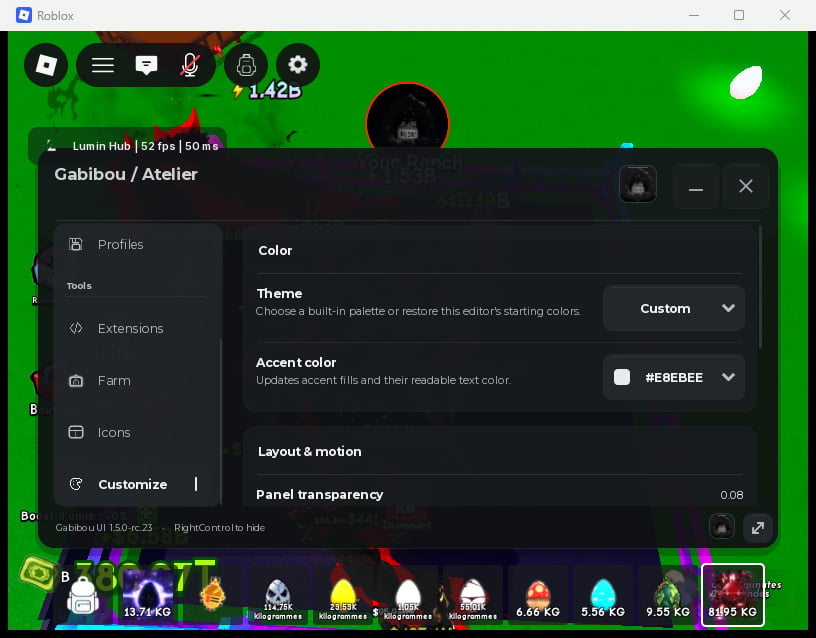
window:Appearance() adds a tab with controls for this window’s theme and accent, panel transparency, navigation style, tab placement, reduced motion, and animation duration. It uses the existing window setters. Changes affect this window only and the editor controls are not automatically saved. Configuration export only includes controls marked persistent; the appearance editor’s controls are nonpersistent.
Appearance accepts only Title, Icon, and Id. Title changes the tab label, Icon accepts a registered icon name or ID, and Id sets the prefix for the editor’s control IDs. If you omit Id, the library chooses an unused appearance prefix. The call returns a normal tab; appearanceTab:Destroy() removes the tab and its controls. No separate settings window, extra persistence layer, or UI fork is needed.
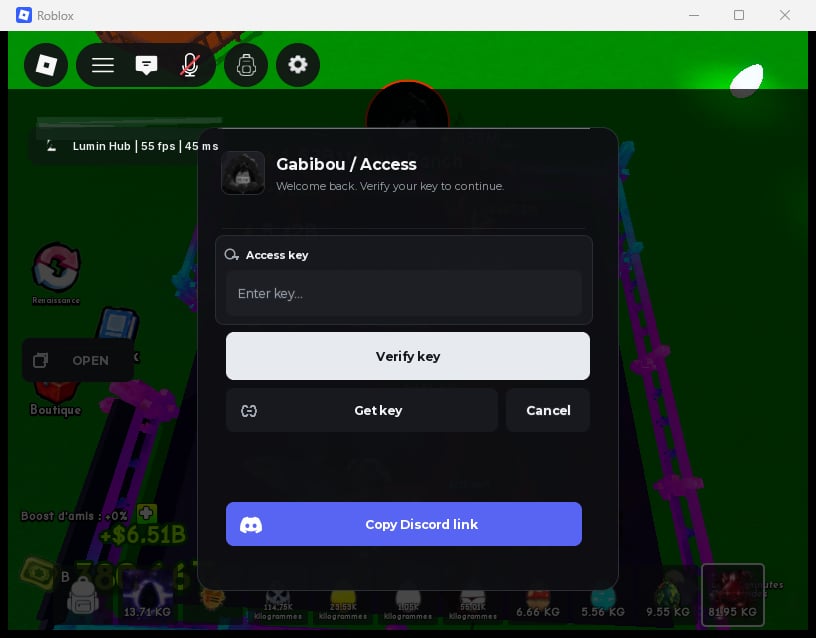
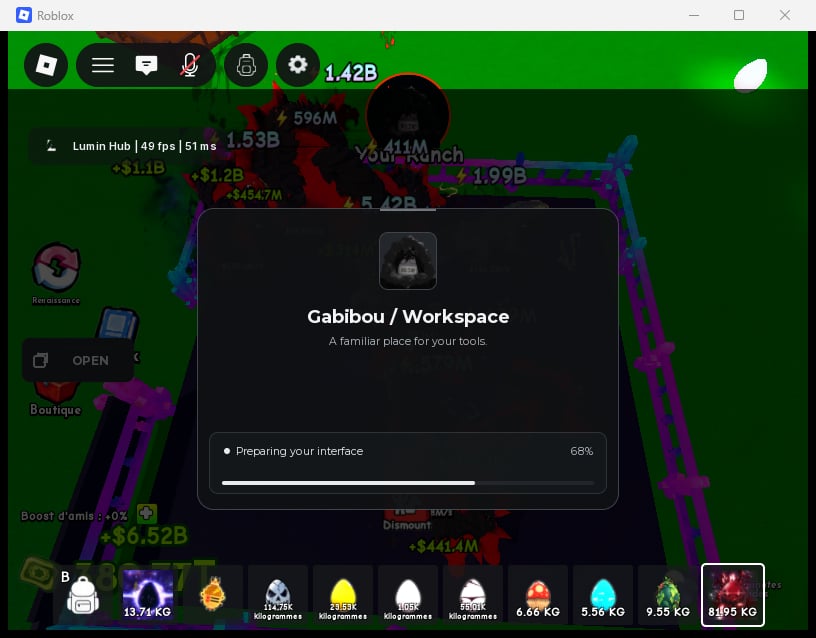
Matching access and loading screens
Apply the sameDesign preset to your window, key gate and loader. Their specific options remain independent: see Key systems and Loading screens for complete examples.
Graphite, Aurora, Ember, and Custom theme choices. Custom restores the window’s opening theme colors before accent changes. Panel transparency ranges from 0 (opaque) to 1 (fully transparent). Navigation, tab position, reduced motion, and animation duration update this window through existing APIs. The ZIP includes appearance_example.luau in its gabibou_ui source folder as a complete UI-only setup.