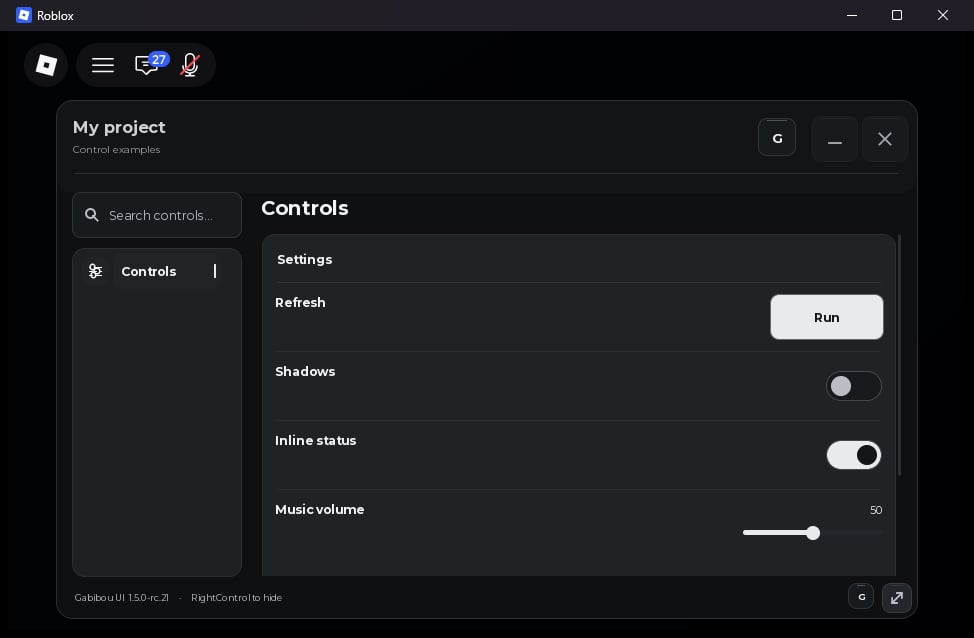
Complete example
Choose an installation method in Installation. Paste the complete block below into the same client script as your loader. For Roblox Studio, replace the first line with the tworequire lines shown in the installation steps; keep the remaining lines below them in the same LocalScript.
Shadows: true or Shadows: false. Click the button to print Refresh clicked.
The function passed to a control is its callback. It runs when the player uses the control. A toggle callback receives the new on/off value (true or false); a button callback receives no value because it represents an action.
Add one control to your example
Use these short examples to extend the complete example above. Put each new call after thelocal settings = ... line if you want the control under Settings. Put it after local tab = ... and use tab: if you want it directly on the Home page.
Button: run an action
Text for the button caption (default Run), Description, Icon, IconVariant, and Variant; the first string labels the control.
Variant sets the button’s visual weight. Primary uses the accent color and is the default. Secondary uses a raised surface. Subtle uses a softer, quieter surface for supporting actions. Use one primary action when a section has a clear main action, then give supporting actions a lighter variant:
Primary, Secondary, and Subtle. If you omit Variant, the button uses Primary.
On rc.21, custom button labels are shortened with an ending ellipsis when they exceed the available button width, whether or not the button has an icon. The configured Text string and callback stay unchanged.
Toggle: turn a setting on or off
Value sets the starting state and defaults to false. The callback receives a boolean: true when on, false when off. The callback runs after the player changes the toggle, not when it is created.
To read or change the value later, add these lines below the toggle:
Slider: choose a number
Add this after the toggle example:Min and Max set the range, Step sets the allowed increments, and Value sets the starting number. They default to 0, 100, 1, and Min respectively. Values stay within the range and round to steps counted from Min; for example, Min = 10 and Step = 4 allow 10, 14, 18, and so on. Save the returned control if you want to read or change it later: volume:Get() reads the current number, and volume:Set(75, true) sets it and calls the callback if it changed.
Dropdown: choose one item from a list
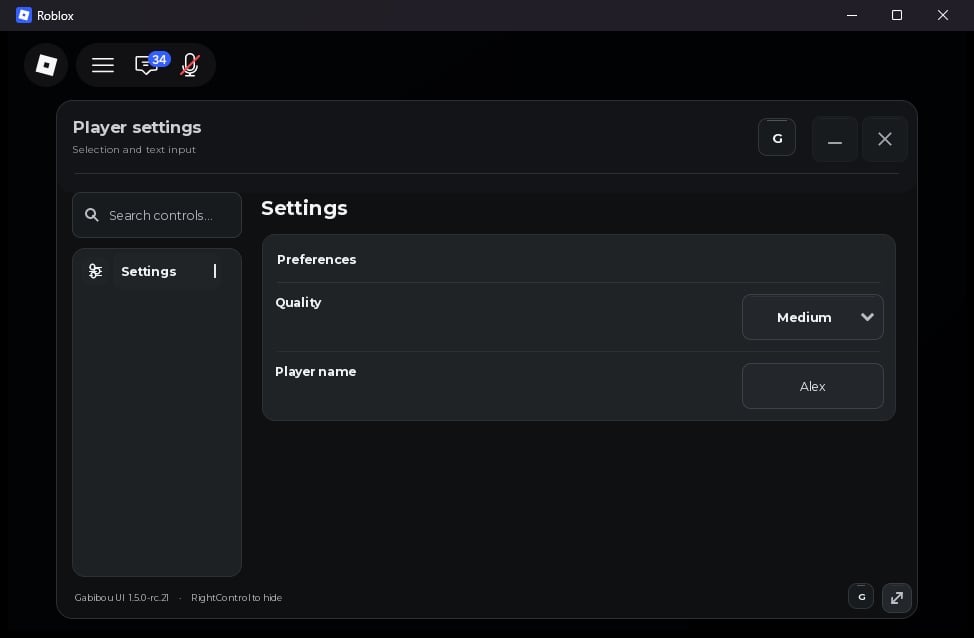
Options must contain at least one unique, nonempty string. Value must match an option; if omitted, the first option is selected. Use quality:Get() to read the current selection and quality:Set('High', true) to change it and call the callback if it changed. Use quality:SetOptions({'Low', 'High'}) to replace the choices; if the current choice is missing from the new list, the first new choice is selected.
Input: enter text
Value defaults to an empty string, Placeholder to Type here..., and MaxLength to 120. The maximum length must be from 1 to 4096; longer text is trimmed to that limit.
Keybind: run an action when a key is pressed
K. Value accepts an Enum.KeyCode or its name as a string and defaults to F6.
Color picker: choose a color
#RRGGBB string. Value accepts that format or a Roblox Color3 value and defaults to #F2F4F8. A custom Palette must contain 1 to 32 hex strings or Color3 values. Save the returned control to use accent:Get() for its hex value, accent:GetColor() for its Color3 value, or accent:Set('#A18FFF', true) to change the color and call the callback if it changed.
Paragraph: display text
Section: group related controls
{Title = 'Audio'}. Section returns an object that accepts controls just like a tab.
Custom: place your own Roblox UI inside a control
Build receives the content area, control, window, and options. Parent Roblox UI instances to content to show them inside the control. Height is the content area’s height in pixels; it defaults to 80 and accepts 0 to 2000. Build is optional. Custom controls have no stored value or built-in callback.
Value controls and options
Toggle, Slider, Dropdown, Input, Keybind, and ColorPicker return a control object. Save it in a variable, such as local volume = settings:Slider(...), when you want to use Get() or Set() later.
Get()reads the current value.Set(value)changes it without running the callback.Set(value, true)changes it and runs the callback if the value changed.- User changes run the callback automatically, except assigning a key during key capture.
settings:Slider('Volume', {Min = 0, Max = 100}, callback). If you do not need settings, pass the callback second: settings:Toggle('Music', callback). The older table form remains available: settings:Toggle({Title = 'Music', Value = false, Callback = callback}).
Settings can include Description, Id, Disabled, and Layout; Desc is an alias for Description. Direct controls get an ID automatically. Declarative controls require Id. Give each window a distinct Id when showing multiple windows at once. Set Persistent = false to exclude a value from configuration snapshots.
For saving and restoring values, see Values and configuration. For custom components and animation, see Animations and custom components.
Next: Values and configuration · Events and lifecycle