1. Load the library
Follow Installation for your environment. In a client editor that supportsloadstring and game:HttpGet, this one line loads the published library:
UI variable name so the examples below work as written.
2. Add a window, tab, and controls
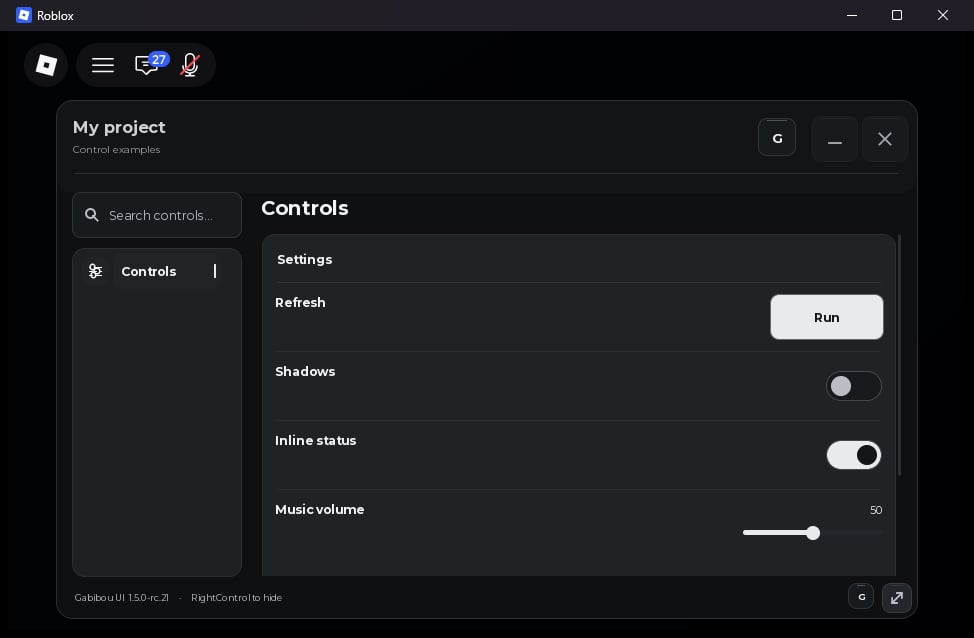
Paste these lines directly after the loader:window is the panel, tab is a page in that panel, and each control is added to the tab. The callback runs when a player changes the control.
Choose a look (optional)
Design presets are part of the 1.5.0-rc.21 release candidate. If your installed copy includes theDesign option, replace Step 2’s CreateWindow line with this one to use Atelier:
UI.Version to identify your installed copy. For setup and all design options, see Design your interface.
Connect a control to your project
In Step 2, replace the existing Show effects toggle with this version. Its callback connects the toggle to your project state, andeffectsToggle keeps a handle for later updates:
'Show effects' to your control’s label and set effectsEnabled to the starting value you want. Set(value, true) updates the control and calls its callback when the value changes; Set(value) or Set(value, false) updates it without calling the callback. A returned control handle also has methods such as SetTitle and SetEnabled.
3. Try other controls
Use the sametab variable to add controls. These short examples show the common controls:
Options. An input returns text. A keybind listens for a key. A color picker returns the chosen color. A paragraph displays information and has no callback. For all options and value types, see Controls.
Group controls and tabs
Add a section heading within a tab withtab:Section('Audio'), then call controls on the returned section. Add a category heading to the navigation rail with window:Category('Settings'), then create tabs beneath it with category:Tab('Audio', 'volume-2'). See Design your interface for a complete category example.
Next, see Appearance and layout to change how the window looks.